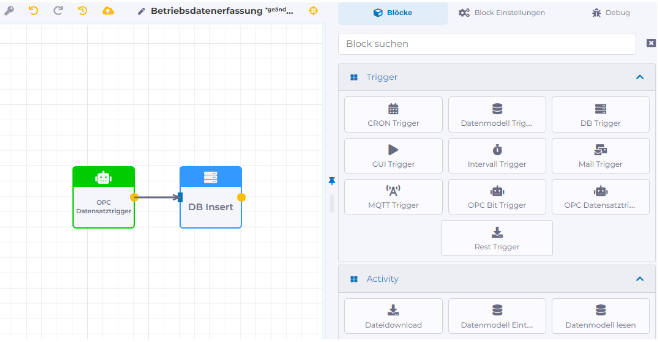
Every workflow must have exactly one trigger that initiates the execution of the workflow. The trigger must be connected to at least one other block that performs the actual action of the workflow.
To design a workflow, start by selecting a trigger from the "Blocks" tab in the "Trigger" category and dragging it onto the design canvas using drag & drop. For each selected block, the available settings for configuration are displayed on the "Block Settings" tab. Then, for example, a block from the "Action" category can be selected and added to the workflow. Connecting the blocks is done by dragging a connection arrow using drag & drop. Clicking the icon publishes the workflow, meaning the changes made are activated, and the view switches to the Workflow Status.
A more detailed description of the available blocks and their associated block settings can be found under Workflow Blocks. If a block is misconfigured, it will be highlighted with a - icon, and an error message will be displayed when publishing the workflow.
Below is an exemplary workflow that uses an OPC data set trigger to write an OPC server data point to a database when its value changes.
 icon publishes the workflow, meaning the changes made are activated, and the view switches to the Workflow Status.